.png)
Frequently asked questions
A question on your mind? Let’s find your answer.
Open a question below and follow the steps one at a time.
I don’t have Wi-Fi. What should I do?
Don’t worry. You can use a temporary hotspot to repair geteduroam. Ask a classmate or teacher to help if needed.
- Step 1
Connect to a hotspot temporarily
Ask someone with working Wi-Fi to turn on a mobile hotspot on their laptop. On that laptop, open Settings → Network & internet → Mobile hotspot. Then connect your laptop using the hotspot name and password.
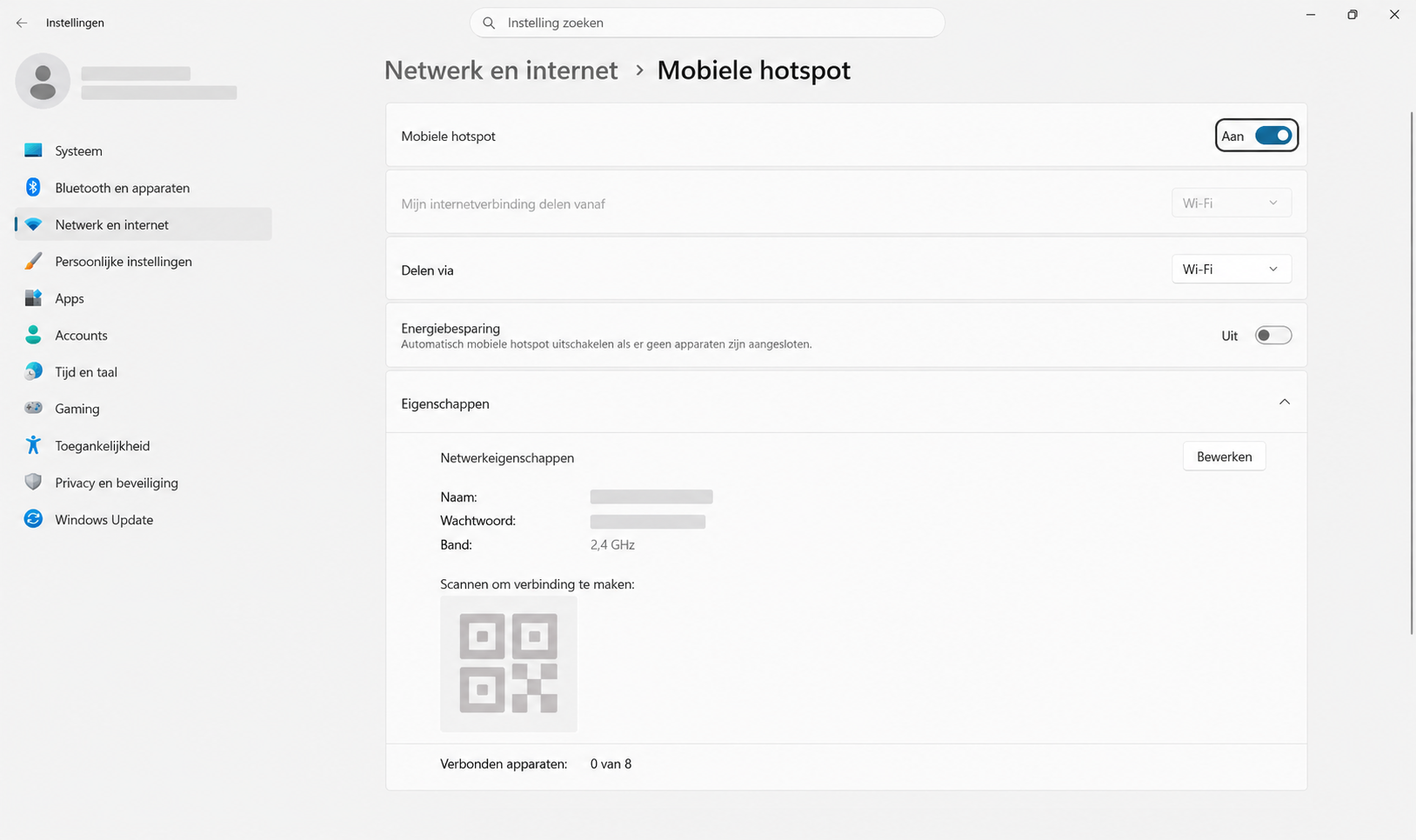
The Mobile hotspot switch should be set to On. - Step 2
Open geteduroam
Press the Windows key, type geteduroam, and select the app with the blue Wi-Fi icon.
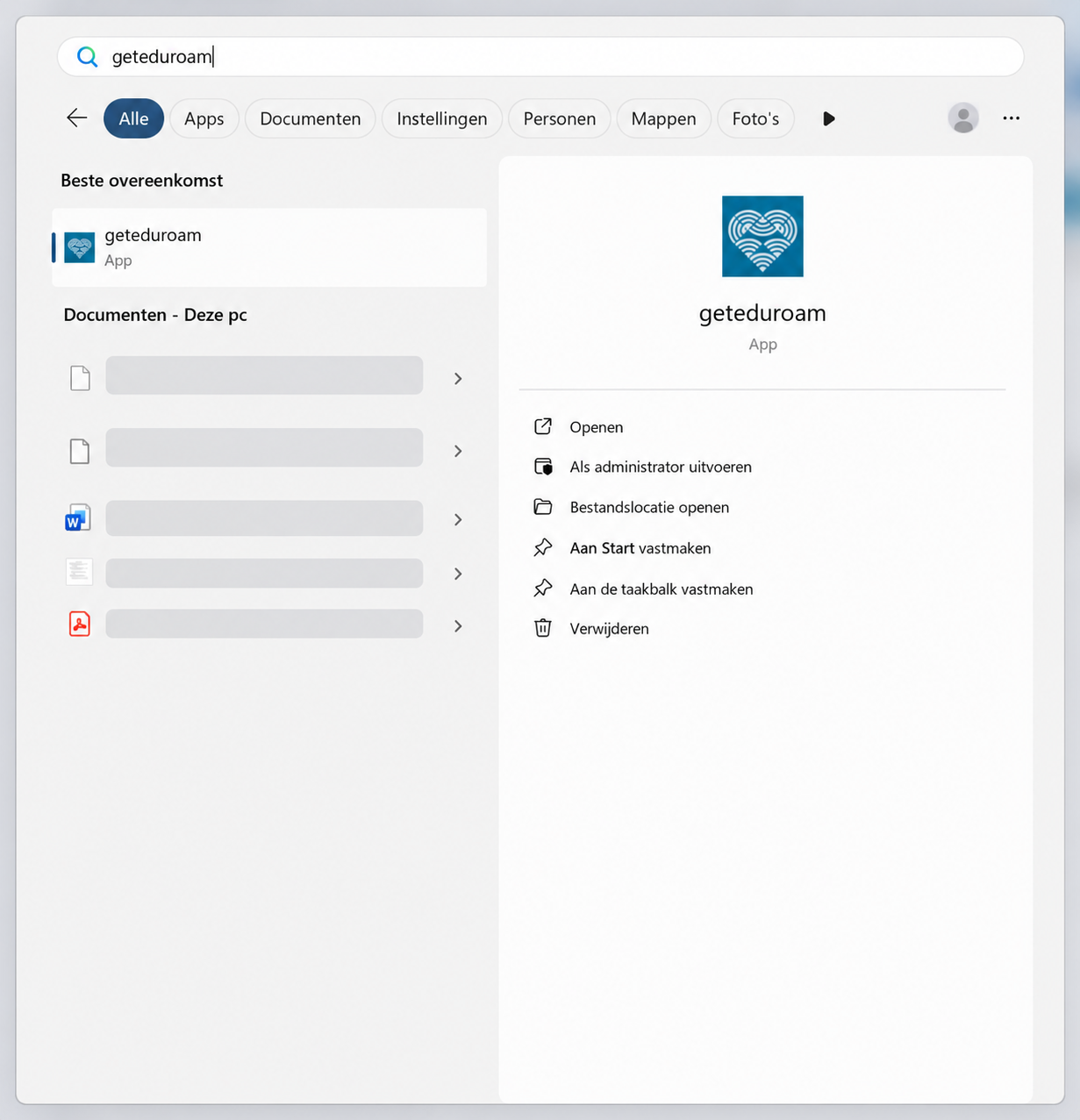
Search for geteduroam and open the app. - Step 3
Select the bottom button
In geteduroam, select Repair your account. It is the bottom button. On your laptop, this button will probably be red.
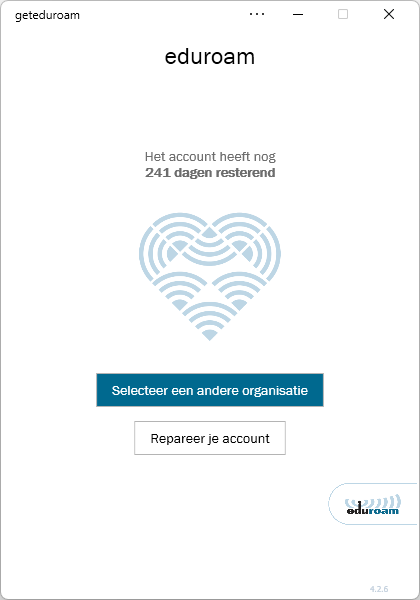
Select Repair your account. - Step 4
Sign in and approve
A web page opens. Sign in with your school account if asked. Then select the blue Approve button.
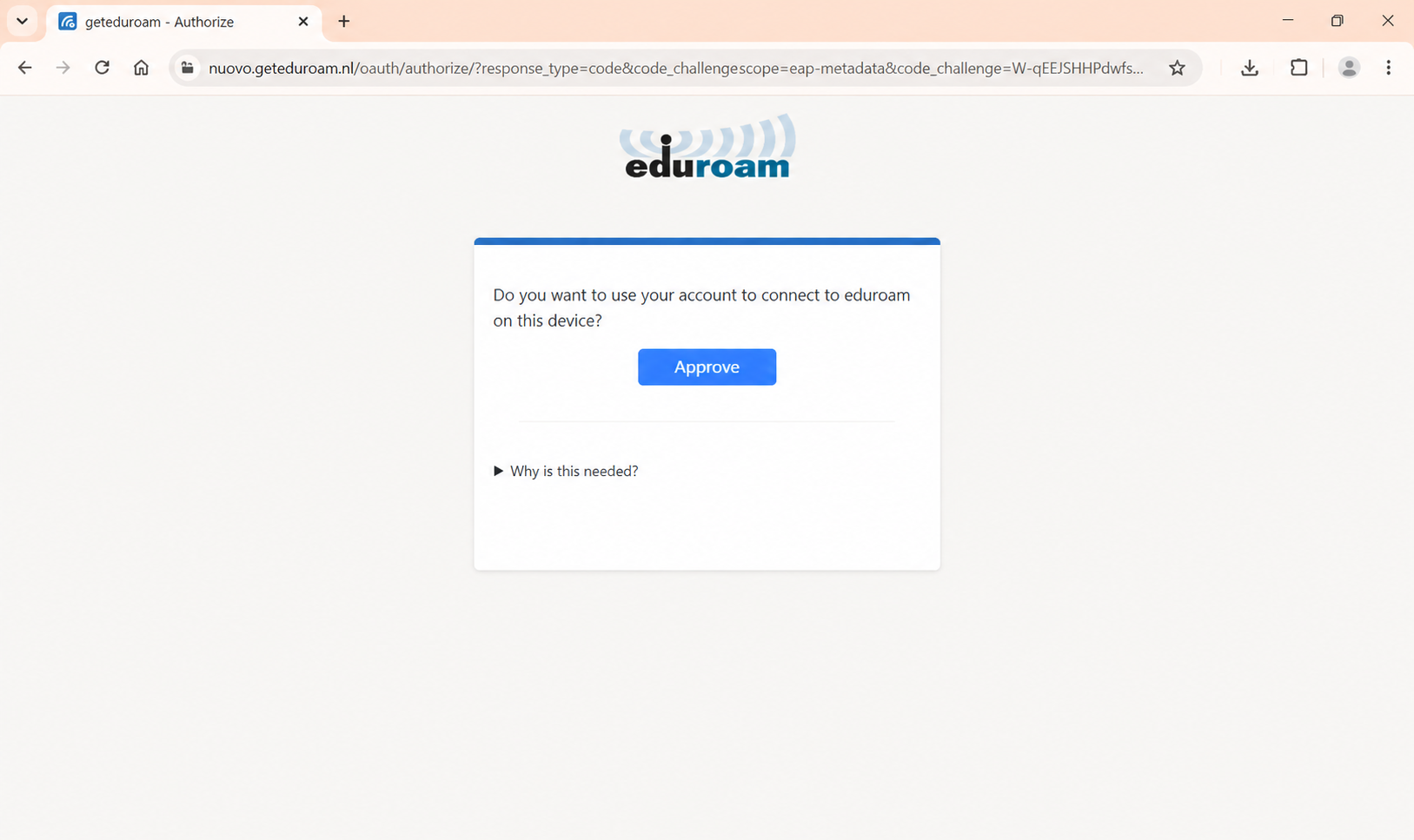
Select the blue Approve button.
Done! Wait for geteduroam to finish. The app will then connect to eduroam automatically. You can turn off the temporary hotspot afterwards.